> ## Documentation Index
> Fetch the complete documentation index at: https://docs.voiceaiwrapper.app/llms.txt
> Use this file to discover all available pages before exploring further.
# Authentication
> Learn how to authenticate your API requests
## API Keys
All API requests (both v1 and v2) must be authenticated using an API key. You can generate and manage API keys from your campaign's dashboard.
## Generating an API Key
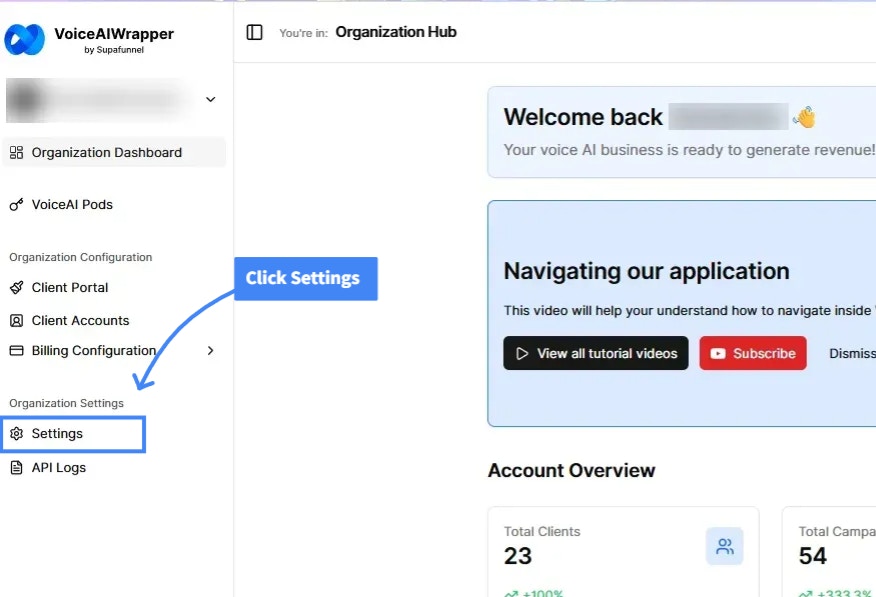
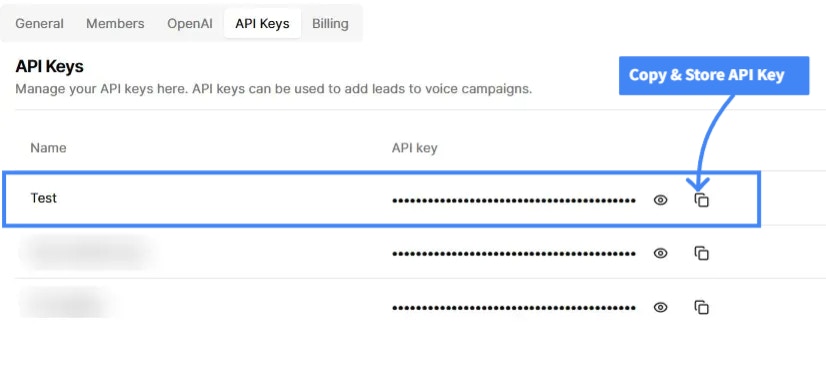
Go to your Settings in the dashboard
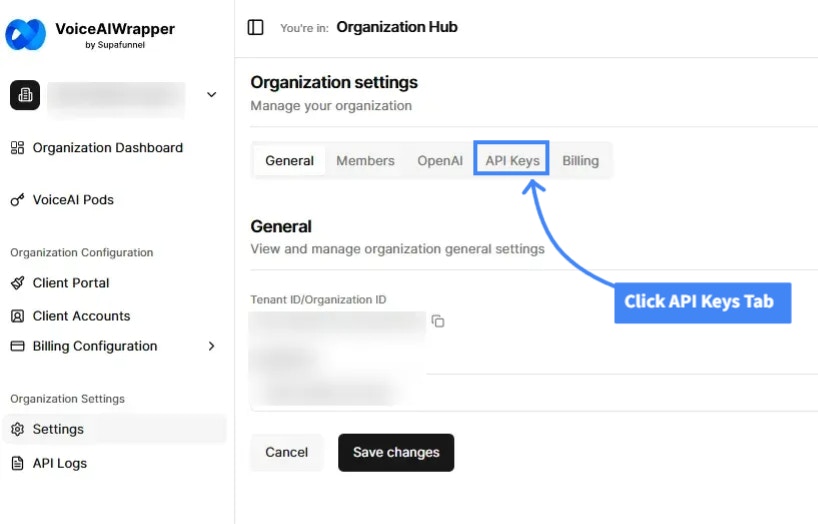
 Click on the "API Keys" tab
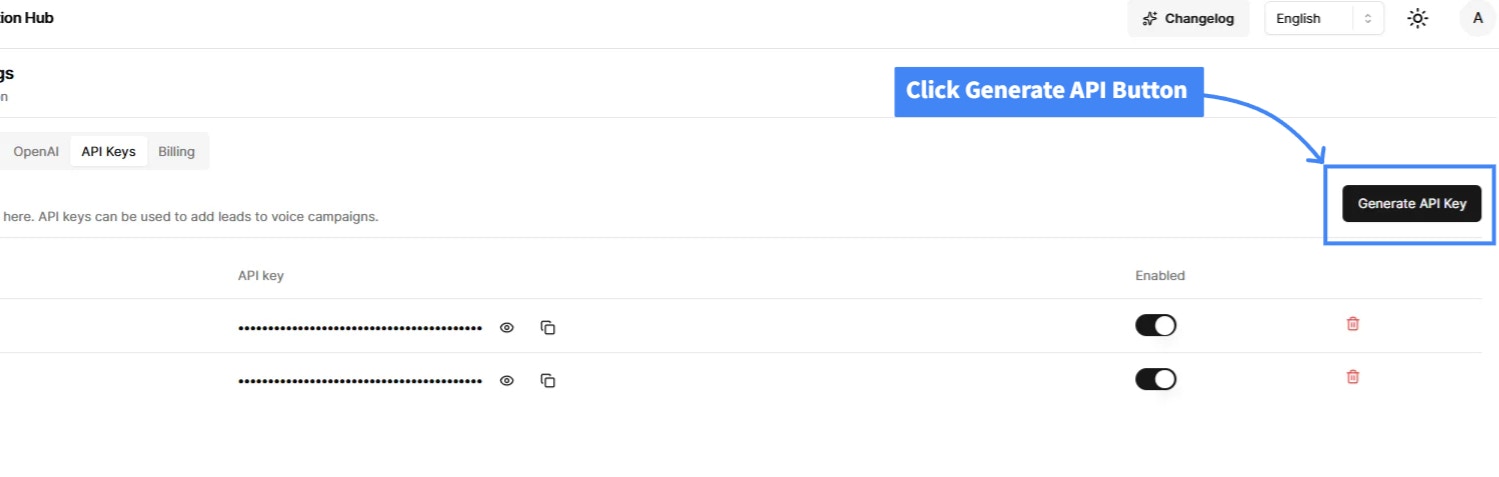
 Click on the "Generate API Key" button
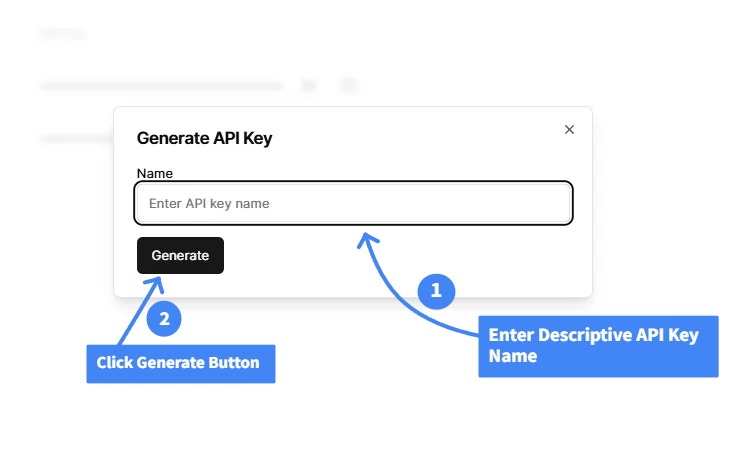
 Click "Generate API Key" and give it a descriptive name
 Copy and securely store your API key - you won't be able to see it again
 **Security**: Keep your API keys secure and never share them publicly. If a key is compromised, disable it immediately and generate a new one.
## Using Your API Key
Include your API key in the `Authorization` header of every request:
```bash cURL theme={null}
curl --location 'https://api.voiceaiwrapper.app/api/v2/voice-campaigns/{campaignId}/leads' \
--header 'Content-Type: application/json' \
--header 'Authorization: Bearer YOUR_API_KEY' \
--data '{...}'
```
```javascript JavaScript theme={null}
const response = await fetch('https://api.voiceaiwrapper.app/api/v2/voice-campaigns/{campaignId}/leads', {
method: 'POST',
headers: {
'Content-Type': 'application/json',
'Authorization': 'Bearer YOUR_API_KEY'
},
body: JSON.stringify({...})
});
```
```python Python theme={null}
import requests
url = 'https://api.voiceaiwrapper.app/api/v2/voice-campaigns/{campaignId}/leads'
headers = {
'Content-Type': 'application/json',
'Authorization': 'Bearer YOUR_API_KEY'
}
response = requests.post(url, headers=headers, json={...})
```
## Finding Your Tenant ID (v1 Only)
**v2 Users**: You can skip this section. v2 automatically determines your tenant ID from your API key.
If you're using API v1, you'll need to include your `tenant_id` in request bodies. You can find it:
1. In your dashboard URL: `https://dashboard.voiceaiwrapper.app/en/{tenant-id}`
2. In the API documentation panel
3. By contacting support
## Managing API Keys
### Viewing API Keys
All your API keys are listed in the API Keys tab with:
* Name
* Status (Active/Disabled)
* Masked key value (for security)
### Enabling/Disabling Keys
Toggle the switch next to each API key to enable or disable it instantly. Disabled keys cannot authenticate requests.
### Deleting API Keys
Click the actions menu next to a key to permanently delete it. This action cannot be undone.
**Best Practice**: Create separate API keys for different applications or environments (development, staging, production). This makes key rotation easier and improves security.
## Testing Your Authentication
Try making a simple API call to verify your authentication is working:
```bash cURL theme={null}
curl --location 'https://api.voiceaiwrapper.app/api/v2/voice-campaigns/{campaignId}/leads' \
--header 'Authorization: Bearer YOUR_API_KEY'
```
```javascript JavaScript theme={null}
const response = await fetch('https://api.voiceaiwrapper.app/api/v2/voice-campaigns/{campaignId}/leads', {
headers: {
'Authorization': 'Bearer YOUR_API_KEY'
}
});
console.log(response.status); // Should be 200 if authenticated
```
```python Python theme={null}
import requests
response = requests.get(
'https://api.voiceaiwrapper.app/api/v2/voice-campaigns/{campaignId}/leads',
headers={'Authorization': 'Bearer YOUR_API_KEY'}
)
print(response.status_code) # Should be 200 if authenticated
```
## Troubleshooting
* Verify your API key is correct and hasn't been disabled
* Check that you're including the "Bearer " prefix
* Ensure the key hasn't been deleted
* Confirm your API key has the necessary permissions
* Verify you're accessing a campaign you have access to
* Check that your tenant is active
* Generate a new API key and try again
* Verify you copied the entire key without spaces
* Check that the key is enabled in the dashboard
**Security**: Keep your API keys secure and never share them publicly. If a key is compromised, disable it immediately and generate a new one.
## Using Your API Key
Include your API key in the `Authorization` header of every request:
```bash cURL theme={null}
curl --location 'https://api.voiceaiwrapper.app/api/v2/voice-campaigns/{campaignId}/leads' \
--header 'Content-Type: application/json' \
--header 'Authorization: Bearer YOUR_API_KEY' \
--data '{...}'
```
```javascript JavaScript theme={null}
const response = await fetch('https://api.voiceaiwrapper.app/api/v2/voice-campaigns/{campaignId}/leads', {
method: 'POST',
headers: {
'Content-Type': 'application/json',
'Authorization': 'Bearer YOUR_API_KEY'
},
body: JSON.stringify({...})
});
```
```python Python theme={null}
import requests
url = 'https://api.voiceaiwrapper.app/api/v2/voice-campaigns/{campaignId}/leads'
headers = {
'Content-Type': 'application/json',
'Authorization': 'Bearer YOUR_API_KEY'
}
response = requests.post(url, headers=headers, json={...})
```
## Finding Your Tenant ID (v1 Only)
**v2 Users**: You can skip this section. v2 automatically determines your tenant ID from your API key.
If you're using API v1, you'll need to include your `tenant_id` in request bodies. You can find it:
1. In your dashboard URL: `https://dashboard.voiceaiwrapper.app/en/{tenant-id}`
2. In the API documentation panel
3. By contacting support
## Managing API Keys
### Viewing API Keys
All your API keys are listed in the API Keys tab with:
* Name
* Status (Active/Disabled)
* Masked key value (for security)
### Enabling/Disabling Keys
Toggle the switch next to each API key to enable or disable it instantly. Disabled keys cannot authenticate requests.
### Deleting API Keys
Click the actions menu next to a key to permanently delete it. This action cannot be undone.
**Best Practice**: Create separate API keys for different applications or environments (development, staging, production). This makes key rotation easier and improves security.
## Testing Your Authentication
Try making a simple API call to verify your authentication is working:
```bash cURL theme={null}
curl --location 'https://api.voiceaiwrapper.app/api/v2/voice-campaigns/{campaignId}/leads' \
--header 'Authorization: Bearer YOUR_API_KEY'
```
```javascript JavaScript theme={null}
const response = await fetch('https://api.voiceaiwrapper.app/api/v2/voice-campaigns/{campaignId}/leads', {
headers: {
'Authorization': 'Bearer YOUR_API_KEY'
}
});
console.log(response.status); // Should be 200 if authenticated
```
```python Python theme={null}
import requests
response = requests.get(
'https://api.voiceaiwrapper.app/api/v2/voice-campaigns/{campaignId}/leads',
headers={'Authorization': 'Bearer YOUR_API_KEY'}
)
print(response.status_code) # Should be 200 if authenticated
```
## Troubleshooting
* Verify your API key is correct and hasn't been disabled
* Check that you're including the "Bearer " prefix
* Ensure the key hasn't been deleted
* Confirm your API key has the necessary permissions
* Verify you're accessing a campaign you have access to
* Check that your tenant is active
* Generate a new API key and try again
* Verify you copied the entire key without spaces
* Check that the key is enabled in the dashboard