

API Keys
All API requests (both v1 and v2) must be authenticated using an API key. You can generate and manage API keys from your campaign’s dashboard.Generating an API Key
1
Navigate to Settings
Go to your Settings in the dashboard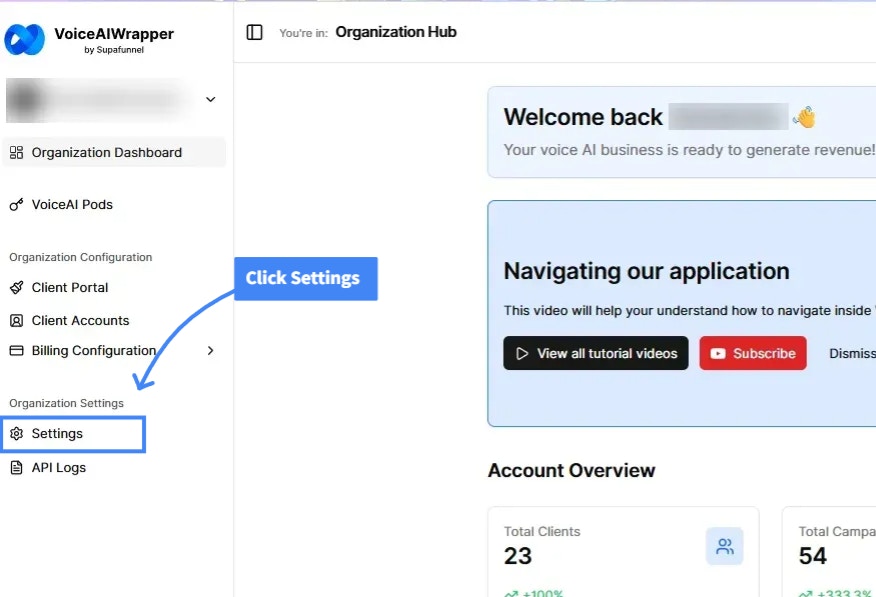
2
Access API Keys
Click on the “API Keys” tab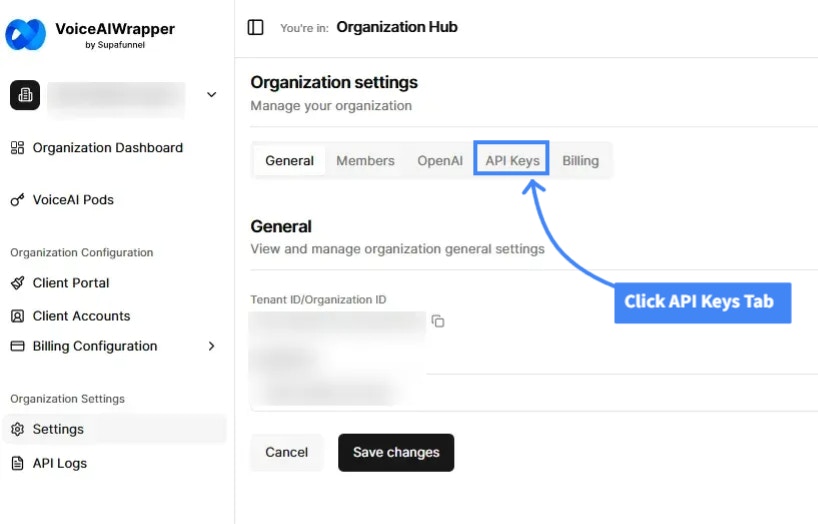
3
Open Generate API Key
Click on the “Generate API Key” button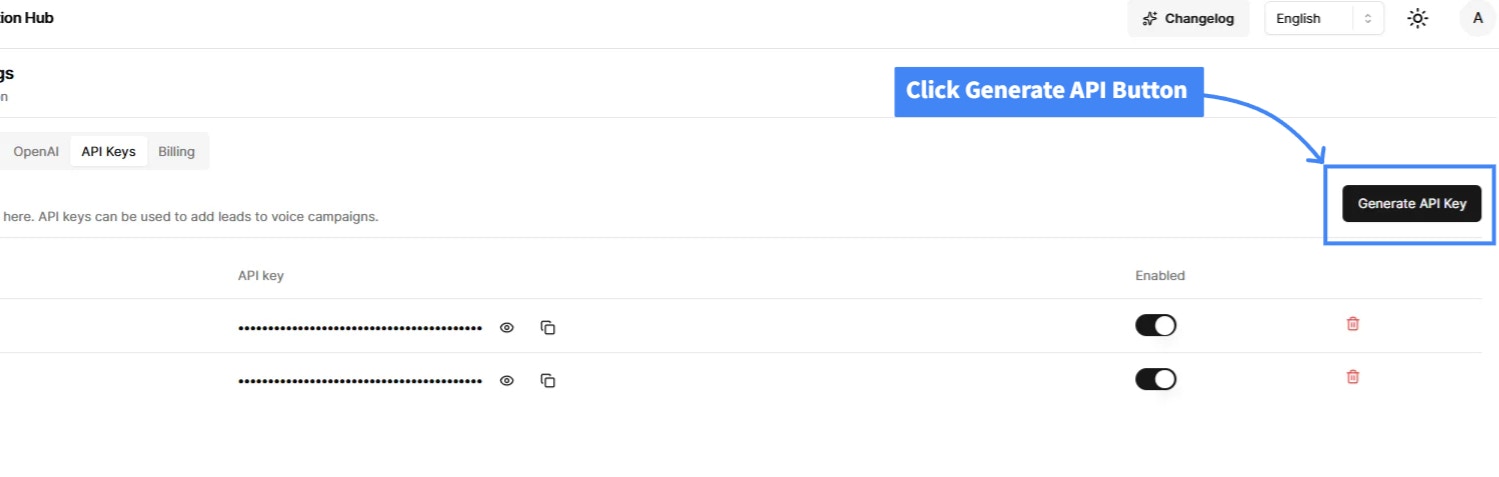
4
Generate New Key
Click “Generate API Key” and give it a descriptive name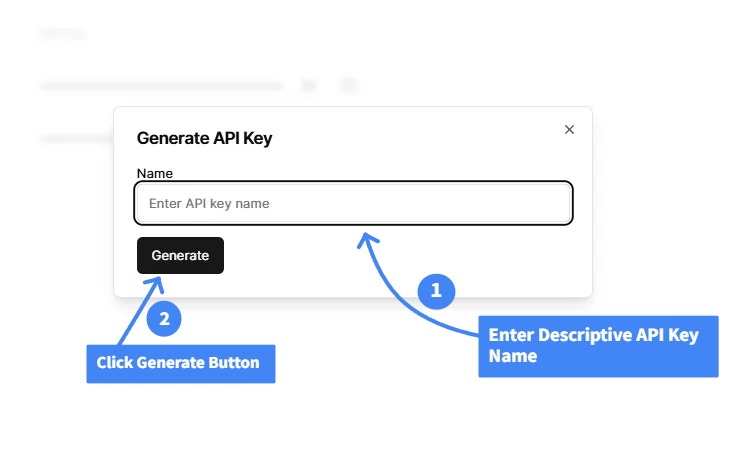
5
Copy and Store
Copy and securely store your API key - you won’t be able to see it again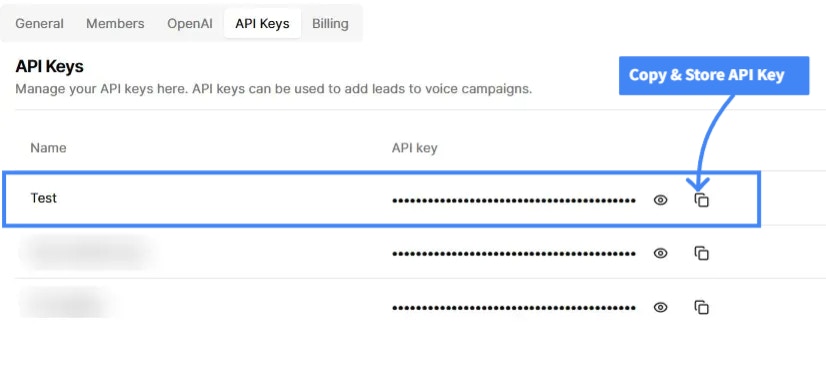
Using Your API Key
Include your API key in theAuthorization header of every request:
Finding Your Tenant ID (v1 Only)
v2 Users: You can skip this section. v2 automatically determines your tenant ID from your API key.
tenant_id in request bodies. You can find it:
- In your dashboard URL:
https://dashboard.voiceaiwrapper.app/en/{tenant-id} - In the API documentation panel
- By contacting support
Managing API Keys
Viewing API Keys
All your API keys are listed in the API Keys tab with:- Name
- Status (Active/Disabled)
- Masked key value (for security)
Enabling/Disabling Keys
Toggle the switch next to each API key to enable or disable it instantly. Disabled keys cannot authenticate requests.Deleting API Keys
Click the actions menu next to a key to permanently delete it. This action cannot be undone.Testing Your Authentication
Try making a simple API call to verify your authentication is working:Troubleshooting
403 Forbidden Error
403 Forbidden Error
- Confirm your API key has the necessary permissions
- Verify you’re accessing a campaign you have access to
- Check that your tenant is active
API Key Not Working
API Key Not Working
- Generate a new API key and try again
- Verify you copied the entire key without spaces
- Check that the key is enabled in the dashboard